Upload Your Images
Front Face — defines the shape
🖼️
Click or drag front image
Back Face — fits inside the shape
🖼️
Click or drag back image
💡 The better your image quality, the sharper your STL will be.
Front
Original
Color Preview
Back
Original
Color Preview
Position — drag the back image
The dashed outline is the front's actual computed silhouette. This is the view from the back, so the front appears mirrored. What you see here is what prints.
Detail▶
Detail controls the working resolution for color detection and geometry — independent of final print size. Lower it to smooth out noise from a marginal/blurry source image; raise it to preserve fine detail from a clean, high-res one. Re-click Remove Backgrounds after changing it.
600
600
Background Removal▶
Optional. If you skip this for a side, that side's full original image is used as-is for color detection — useful if the image has no background to remove, or you want to keep it.
30
0
30
0
⚠ After adjusting a tolerance or detail slider, click the matching Remove Background button again to apply it.
Color Detection — Front▶
4
Click Detect Colors below — background removal is optional.
Color Detection — Back▶
4
Click Detect Colors below — background removal is optional.
Position Back Image▶
85%
Settings & Export▶
80
⚠ This is your final size — longest side of the print. Import into your slicer and print at 100%; resizing there will change the printed size.
Color Bodies in Export
💡 If your STL shows jagged or rough edges, the fix is usually a better source image — try a cleaner, higher-resolution version.
Generating...
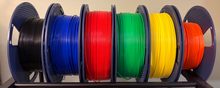 🧵 I print all of these on SUNLU PLA+ filament — it's what I use for every example on this site.
As an Amazon Associate I earn from qualifying purchases.